Basic
For small sessions with friends.
€7.99/month
cancel monthly
Choose plan
- Players (guide value)approx. 3
- RAM5 GB
- vCores1.5
- NVMe20 GB
- 2 backup slots
Halloween at Nexthosting: 10% off game servers with the code – until November 1
Rent your own RuneScape: Dragonwilds server. You pay for hardware, not slots. Up to six players gather, build and face the dragons together – your server creates the world itself and keeps it.
€10.99 /month · approx. 6 players
Start with AdvancedAccording to Jagex, this is how your friends find your server: open the Public tab on the Worlds screen and type the name of your world exactly – upper and lower case matter. Your server console shows the name after the start.
Every plan includes DDoS protection, the panel and hosting in Germany. The plans differ in hardware – we do not limit slots.
For small sessions with friends.
cancel monthly
For regular groups and weekly sessions.
cancel monthly
13th-generation Intel processorDDR4 memoryNVMe SSDData center in GermanyAvailability as set out in the Service Level Agreement
With monthly billing you can cancel monthly. Up to 15% cheaper when you pay in advance. Final prices, no setup fee. Player numbers are guide values – you set the maximum yourself, up to the game’s limit of 6.
Real screenshots from the game server panel. Everything runs in the browser – no FTP program and no SSH.
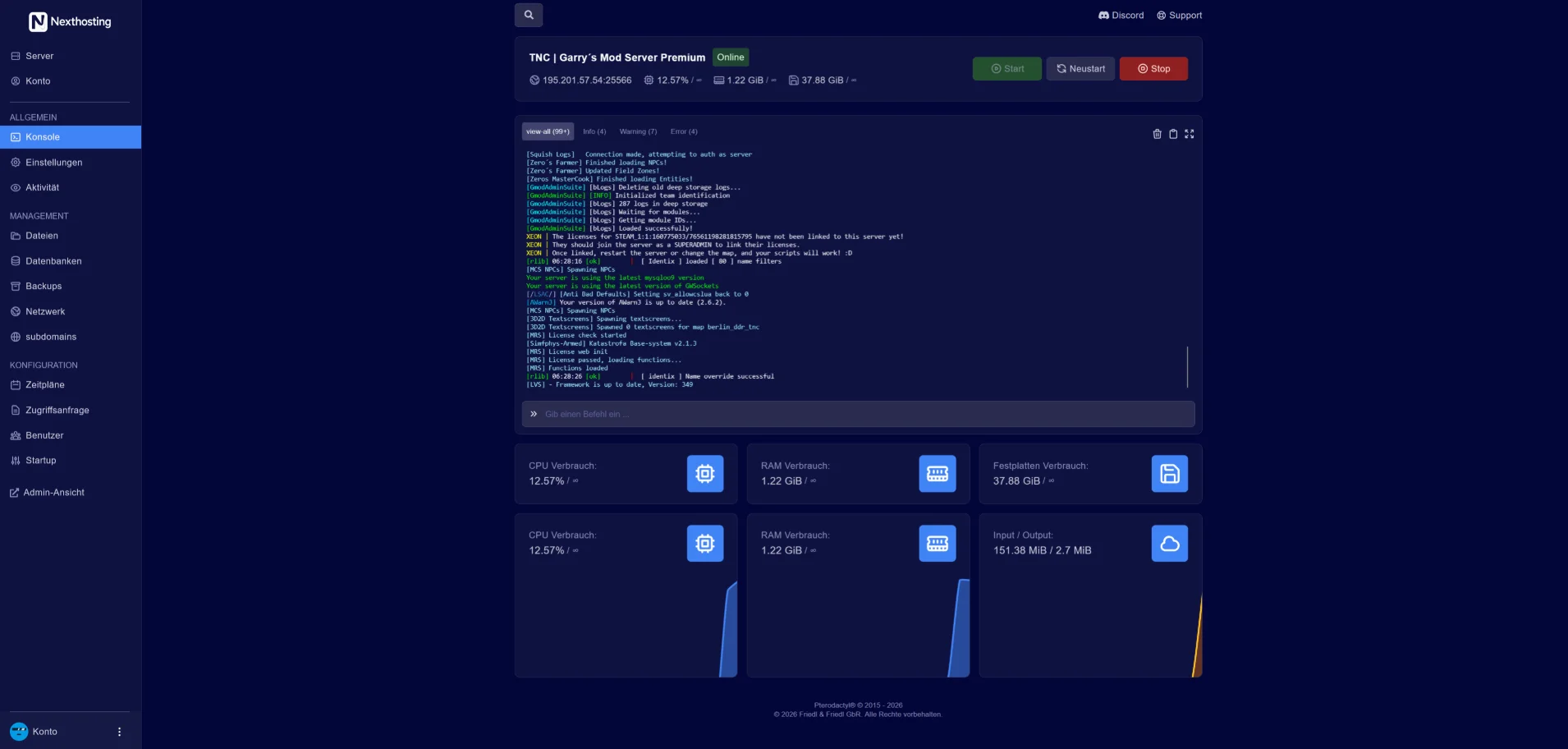
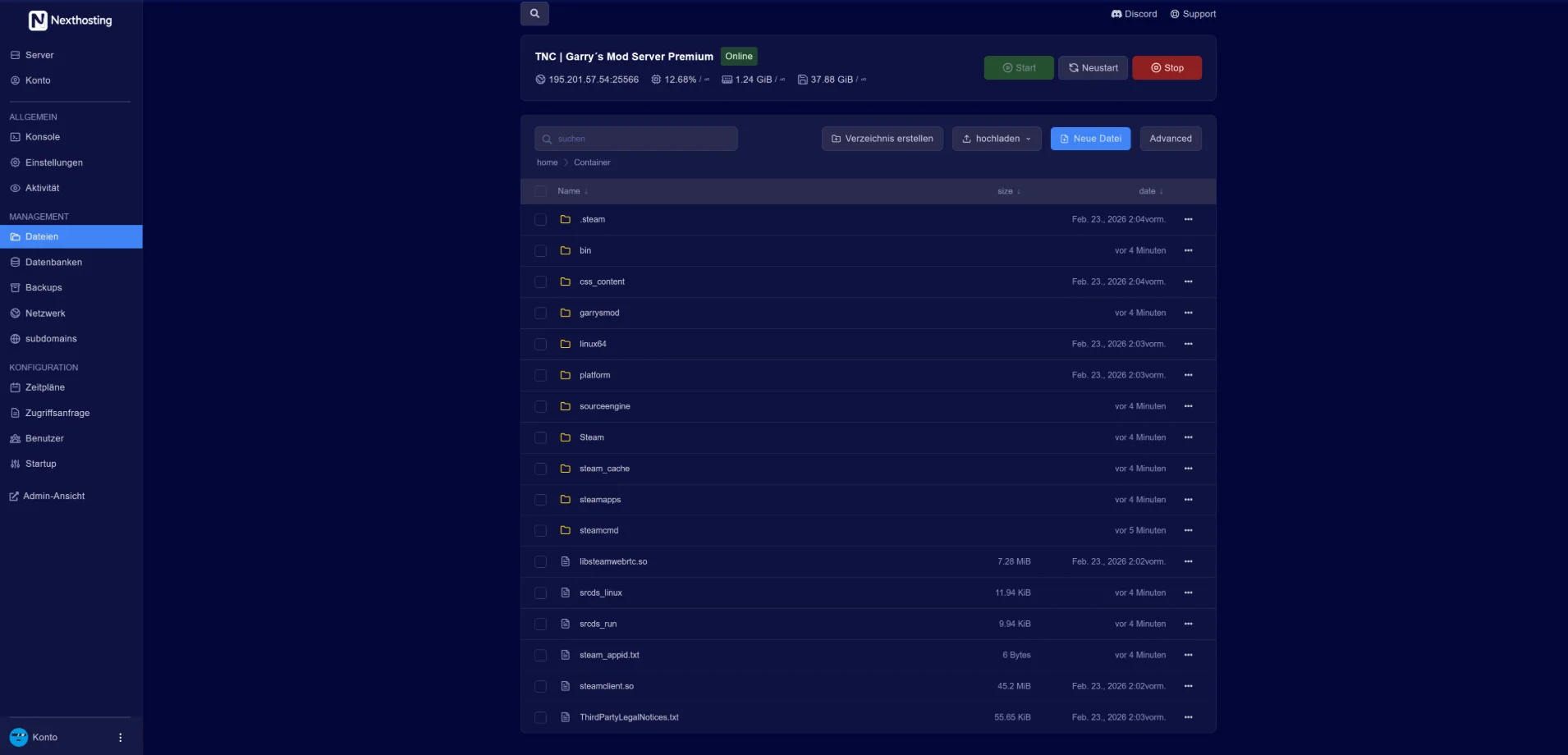
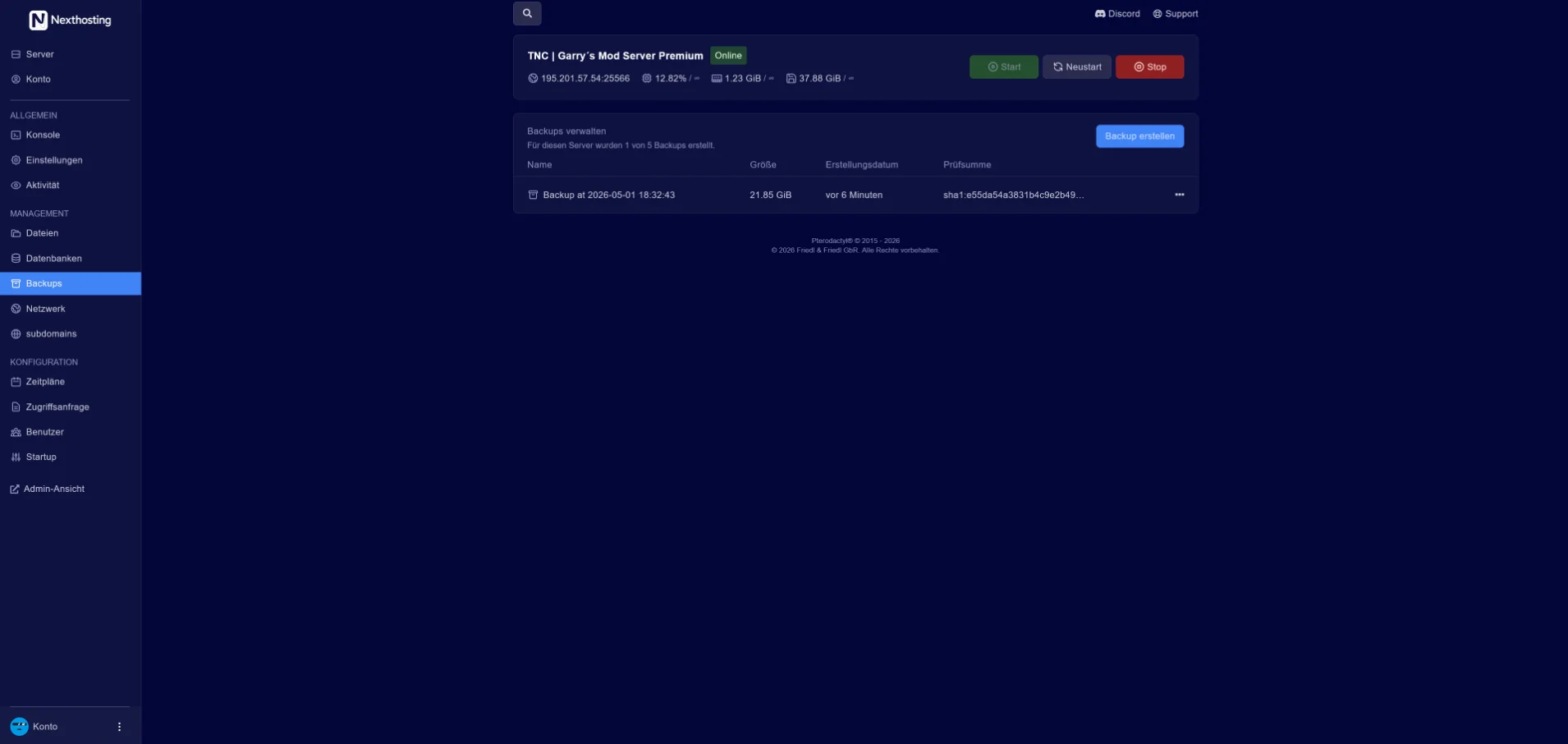
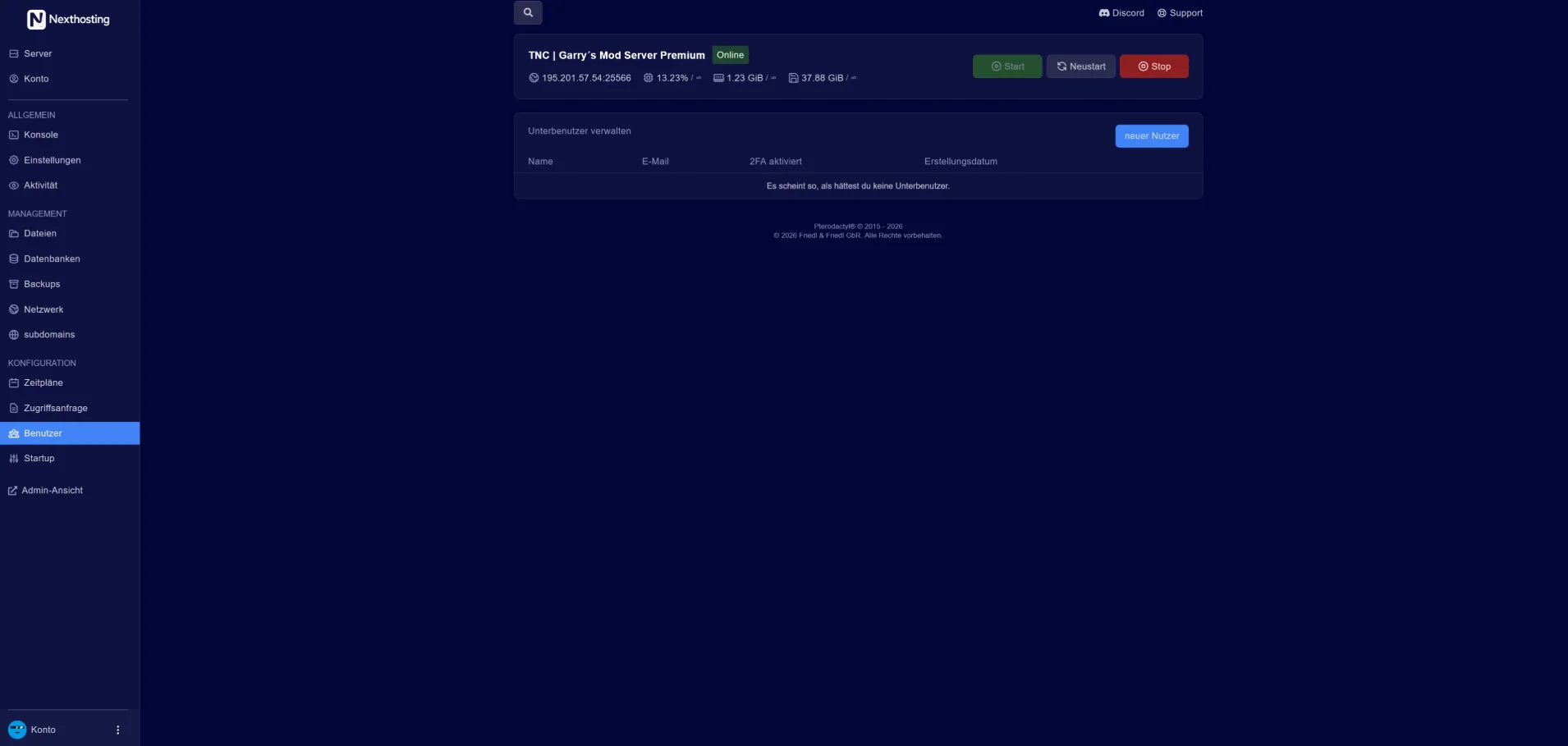
Screenshot from the Nexthosting panel (example server). Arrow keys switch between the areas.
All of this is in the panel under “Startup settings” and applies on every start: your server first writes these values to the DedicatedServer.ini file under RSDragonwilds/Saved/Config/LinuxServer. It keeps all other lines of the file.
According to Jagex, dedicated servers are listed with the public worlds in the game. Your friends search there for the name of your world – letter by letter, with upper and lower case. You find the name in the startup settings and, after the start, in the console.
Steps and menu names according to Jagex, as Jagex names them in English.
Nexthosting Schutz
Every game server at Nexthosting is protected against DDoS attacks at no extra cost. With a dedicated IP address, your server gets a filter all to itself – and you get the panel where you watch every attack bounce off.
All quiet. Blue means your players. They walk through the gate – that is your server's port.
Example, no real data

Moving example from the protection panel: small squares run towards a wall. Blue squares – the players – pass through the gate to the server, during an attack too. Sand-coloured squares – the attack – get stuck at the wall.
Senders that open connections in bulk are locked out automatically while an attack is running. You lift any lock with one click.
Existing connections are never cut. Regulars – anyone who has spent a while on your server – get in straight away, even in the middle of an attack.

The map shows the traffic to your server, country by country. Block a country with one click – or allow only the ones you choose. If you like, the protection blocks attacking countries by itself while an attack is running.

Course, waves and senders, minute by minute – as a PDF and as a table. One click reports the attack to Nexthosting: an urgent notice at once, followed by a full report as a PDF. On request with a confirmation you can hand to the police or other authorities.

Three protection levels – and if you like, the protection tightens by itself when an attack starts. You are told by e-mail and Discord as soon as an attack begins and when it is over. Plus: a test of the protection at the push of a button, co-managers for your community's admins, and traffic per port.
You pick the dedicated IP address as an add-on while ordering. Server location: a data centre in Germany.
Your players can see for themselves whether the server is up and how full it is right now.
Included with every game server at no extra charge, you switch it on in the panel. Player count and map are available for games with a server query, online or offline is always shown.
Example: a Discord channel shows the status message of a server with 12 of 50 players, ping, uptime and address. Below it is a forum post whose signature contains the status banner of the same server. Both show the same player count.
Costs, setup, player numbers and cancellation – answered briefly.
From €7.99 per month (Basic plan). The largest plan, Advanced, costs €10.99 per month. The plans differ in memory, cores and storage. These are final prices, and there is no setup fee.
After payment, your server sets itself up. You open the panel straight from your customer account. On first start, the panel asks for your Player ID (Owner ID) from the game – without it, the server does not start.
According to Jagex, by the name of your world: on the Worlds screen, they open the Public tab and type the world name into the search field – exactly as it is set, with upper and lower case. After a few seconds, your server appears; they join with Enter World.
You find the name of your world in the startup settings and, after the start, in the console.
First check that it is running: without an Owner ID, it does not start, and the console tells you what is missing. Then check the name (at most 16 characters, as set in the startup settings): according to Jagex, players search for the name of the world your server is currently running, and the search is case sensitive.
According to Jagex, server and game must also run the same version. Your server’s version is at the top of its log, your game’s version in the top left corner of the screen. Your server checks Steam for a new version on every start – so after a game update, a restart is enough.
According to Jagex, yes. On your computer, your worlds are .sav files in C:\Users\<name>\AppData\Local\RSDragonwilds\Saved\SaveGames; on your server, they are in the RSDragonwilds/Saved/SaveGames folder. Stop the server, back up the folder and upload your world there – with the file manager or via SFTP.
Then enter the exact file name without .sav under “World name” in the startup settings (at most 16 characters): your server loads the world with that name and otherwise creates a new one. According to Jagex, this is also how you bring your own rules: create the world in the game as Custom or Creative, enter and leave it once, then upload it.
According to Jagex, you yourself are the owner: the server recognizes you by your Player ID. Others become admins when they open the Server Management tab in the game via Pause Menu › Settings and enter the admin password – you find it in your startup settings.
According to Jagex, admins can ban players who are online but cannot lift bans. Only the owner can do that – for any player, even when they are offline.
According to Jagex, at the very bottom of the game’s Settings menu; use the copy button to put it on your clipboard. The panel asks for it on first start; you can change it later under “Owner ID” in the startup settings. The server does not check whether it is correct – so copy it instead of typing it.
We do not limit slots – you pay for hardware. The player numbers on the plans are guide values; how many your server really handles depends on the memory in your plan. RuneScape: Dragonwilds allows up to six players per server; you set the number in the startup settings.
Yes. You can upgrade at any time; the change takes effect immediately and the difference is charged pro rata. Downgrades take effect at the end of the term. You can also add just RAM, cores or storage. Your data stays in place.
Yes. You book your own IP address as an add-on to your server. With it, you get up to 100 ports of your choice and the protection panel.
Yes, in every plan. Backup slots: Basic 2, Advanced 3. Back up with one click or set up your own schedule in the panel; restoring also takes one click.
In a data center in Germany. What applies to availability is set out in the Service Level Agreement.
Yes. With monthly billing you can cancel your server monthly. Paying in advance makes it up to 15% cheaper; the chosen term then applies. If you only need a break, you can pause the server – then you pay only for keeping your data.
